
Step 5 of 8: Scheduling and customer updates
Customers who always know what is happening
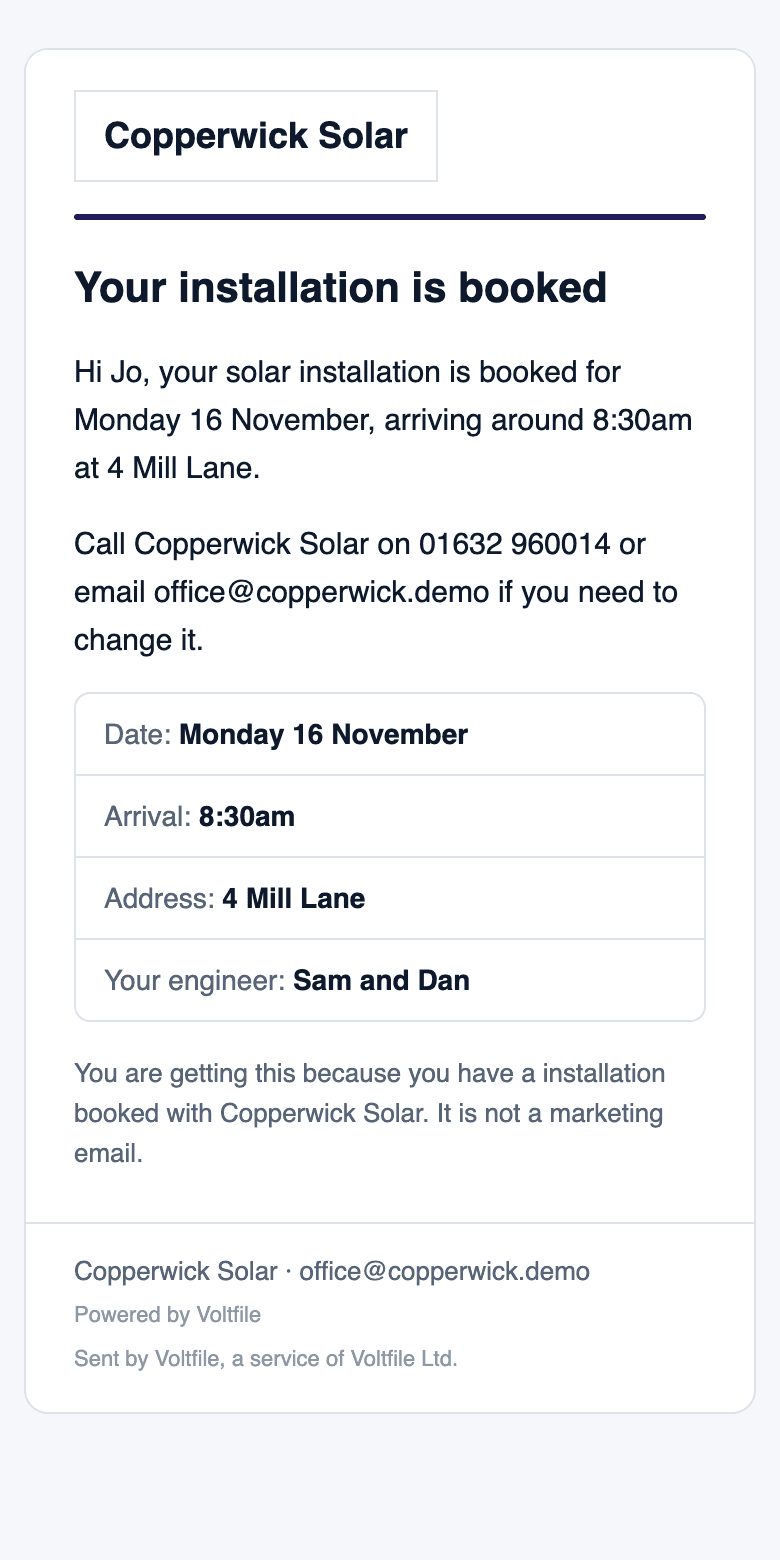
Book the visit and Voltfile tells the customer. They know the day, the time and who is coming, they know when the installer is on the way, and they hear as the job moves on. Fewer "when are you coming?" calls for the office.
How it runs on a job
What the installer does, step by step
Step 1: Book the visit
Open the job and press Book it in, or book from the calendar. Pick the day and who is going. Surveys, scaffold, installs, EV chargers and aftercare all go in the same calendar.
Step 2: The customer gets the booking
Leave Email the customer ticked and they get the date, the arrival time, the address and who is coming, with your phone number and email to change it. Moving or cancelling the visit sends them the change.
Step 3: The engineer sees their day
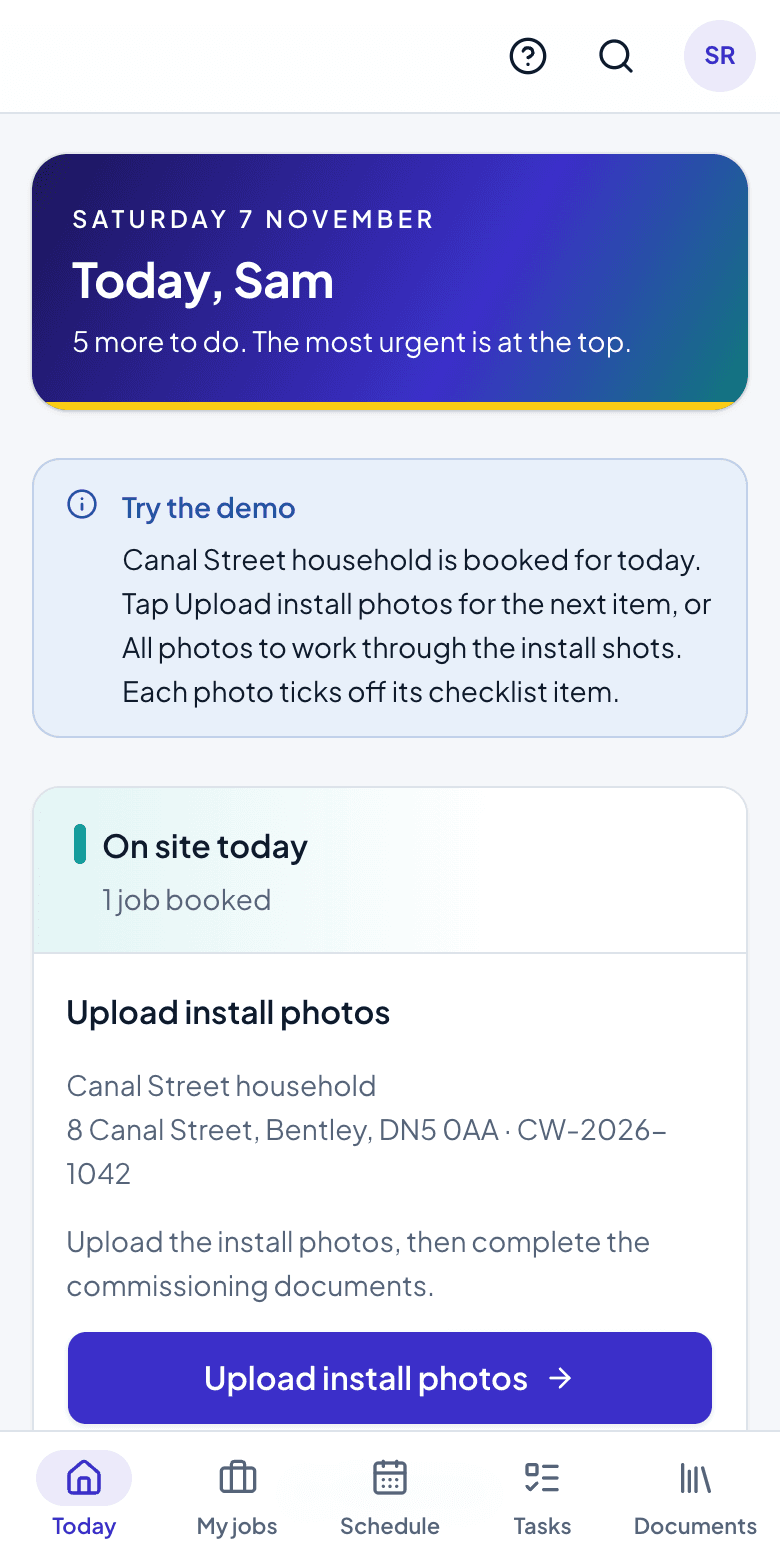
The visit shows on the engineer's Today screen and in their schedule, with directions. They only see the jobs they are booked on.
Step 4: On my way
When they set off, the engineer taps On my way. Their location is read once to work out an arrival time, and it is not stored. The customer gets an email to say they are on the way, with a link to the arrival time.
Step 5: Updates as the job moves on
When the job moves to its next stage, the customer can get a short progress email. Network application news and the handover pack each have their own email too.
Step 6: Everything in the portal
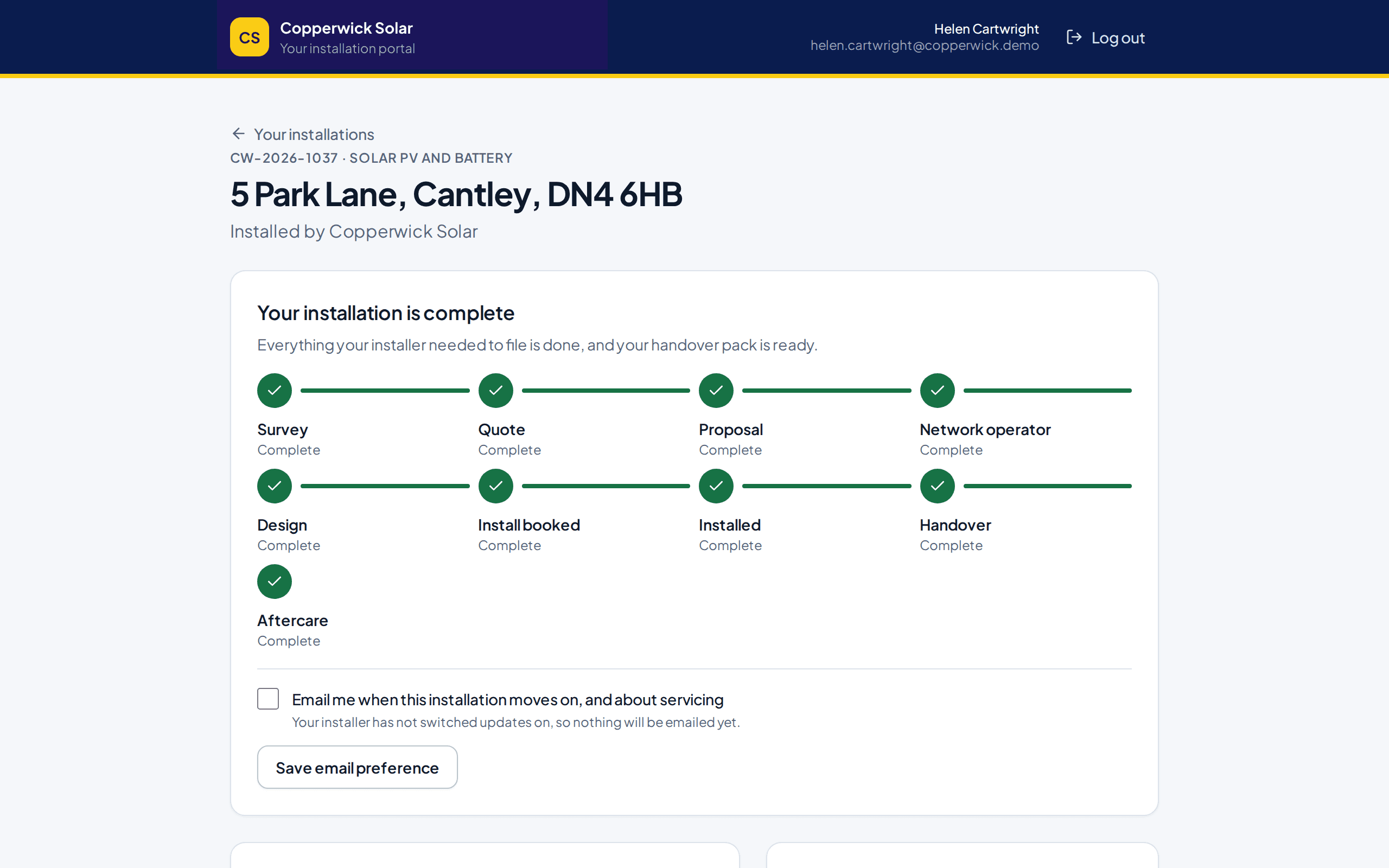
The customer logs in to their own portal from an email link, with no password. They follow progress, download the handover pack and certificates, and report a problem.
One calendar for every visit
Day, week, month and engineer views. Surveys, scaffold, installs, EV chargers, air con and aftercare visits, on a job or on their own, including bookings that run over more than one day.
A job waiting on network approval cannot be booked for install, and the calendar says why.
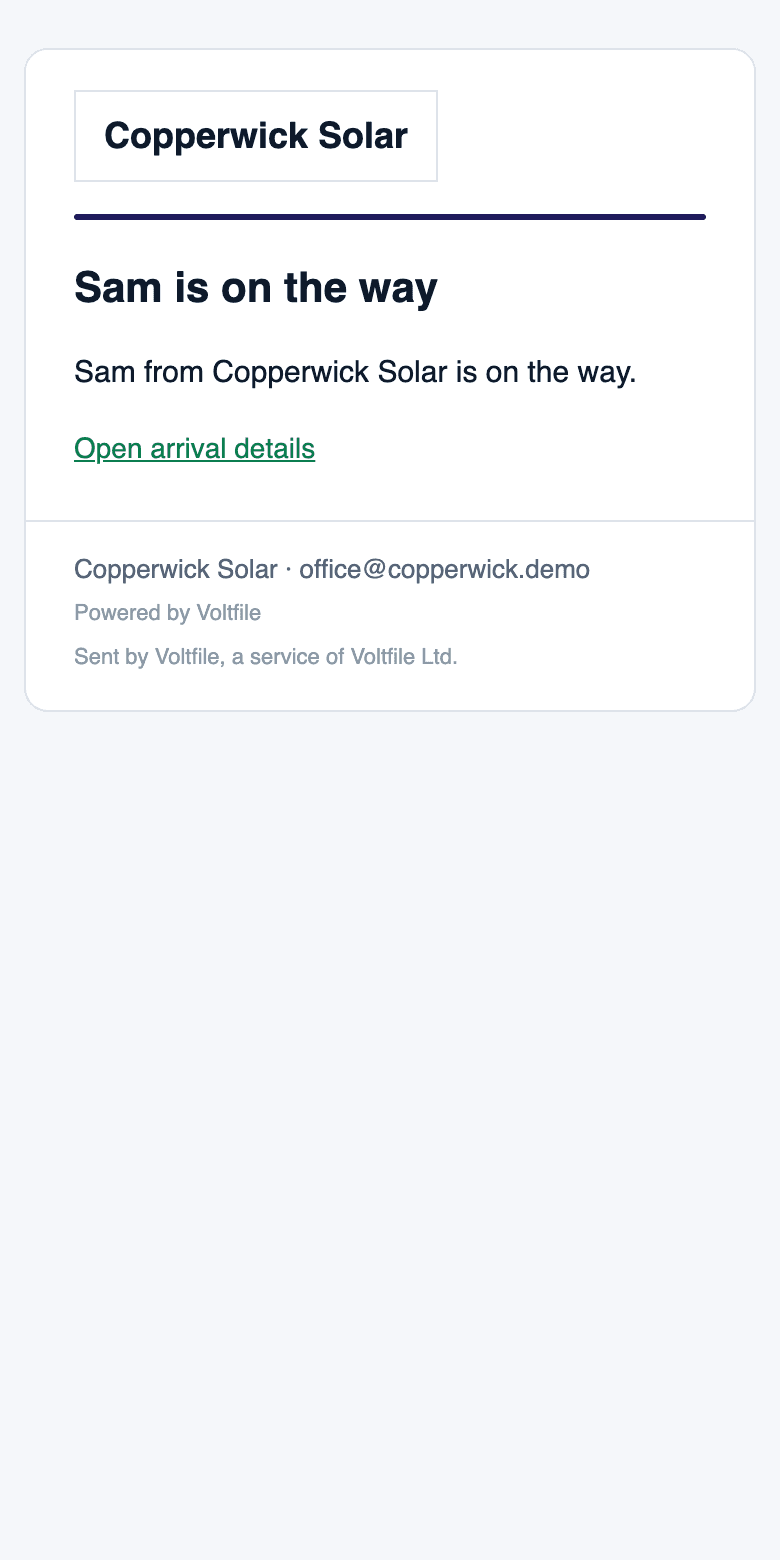
On my way, with the arrival time
One tap from the engineer sends the customer an email to say who is on the way. The link opens their arrival time, worked out from the drive when the engineer set off.
You choose whether your company sends it, and the hours engineers can share their location.
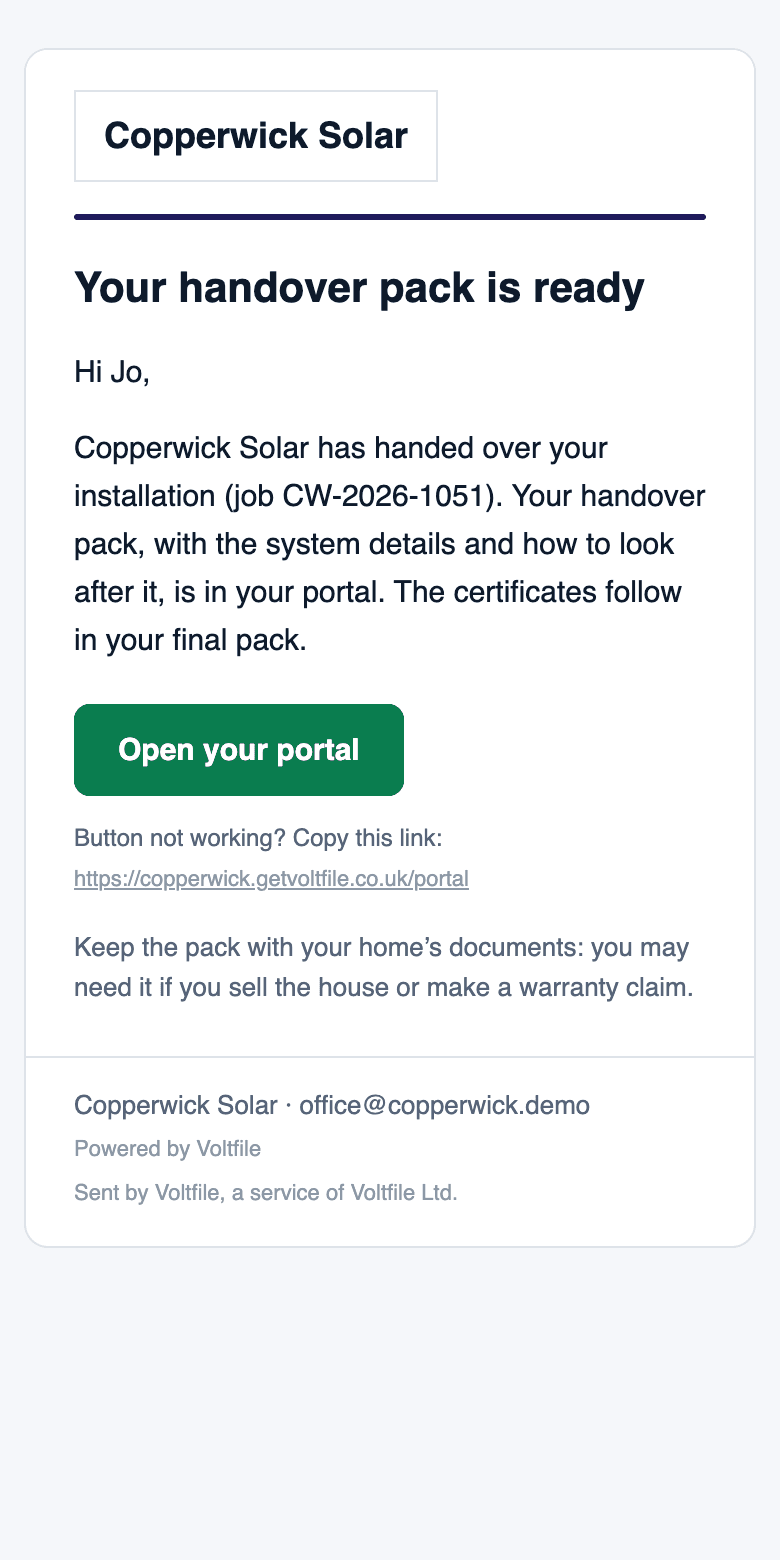
Kept up to date, in your name
Progress emails as the job moves on, news on the network application, and an email when the handover pack is ready. Each one carries your logo and colours, and replies come to you.
After the install, send a service reminder or ask for a review with one press.
Their own portal
The customer opens their portal from an email link. They see where the job is, download the handover pack, certificates and warranties, and report a problem that lands in your aftercare register.
What ends up on the job file
Kept on the job with the rest of its evidence, where your office and your assessor can find it.
- Every booking, change and cancellation, with who made it
- The On my way time and the arrival estimate, in the job history
- The customer's portal, with the handover pack and certificates once they are ready
The screens on this page are a made-up demo company, Copperwick Solar, with made-up jobs and customers.
FAQ
Common questions
Is scheduling included in my plan?
Yes. The calendar, booking emails and On my way come with every plan.
Does On my way track the engineer?
No. The location is read once, when the engineer taps On my way, to work out an arrival time. It is not stored.
What if the customer has turned off emails?
Booking emails are still sent, because they are about a visit to their home. Progress emails only go to customers who have asked for them.